Skip to content

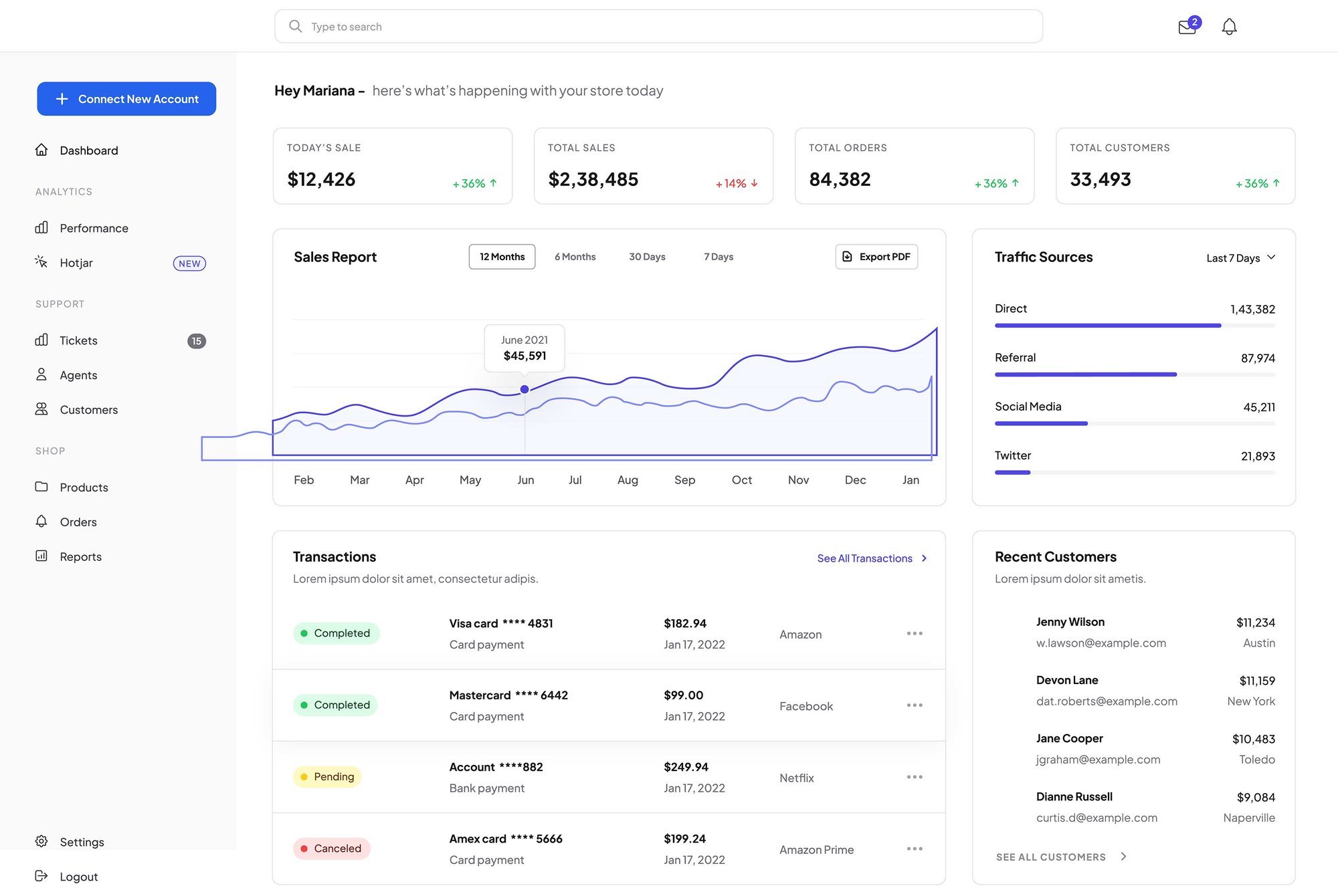
Highlight your product’s interface alongside a clear value proposition to give visitors an immediate look at your platform’s core features and drive higher engagement.
saas-mockup
Logo
Logo
Logo
Logo
Logo
Section Header

Section Header

Use this section header to introduce your core product features. Keep the subtitle concise — one sentence that sets context for the cards below.

Elevated Styling

Use these card containers to make specific features stand out from the rest of the page layout.

Professional Depth

Add subtle shadows and borders to give your business offerings a modern, three-dimensional feel.

Distinct Focus

Separate complex information into clean, digestible units that encourage user interaction and clicks.

Dynamic Spacing

Adjust margins and padding with simple sliders to create the perfect amount of white space.

Border Customization

Fine-tune corner rounding and border weights to match your brand's unique design language.

Mobile Optimization

These cards automatically stack and resize to ensure a seamless experience on every device.
Feature Section

Narrative & Technical Feature List

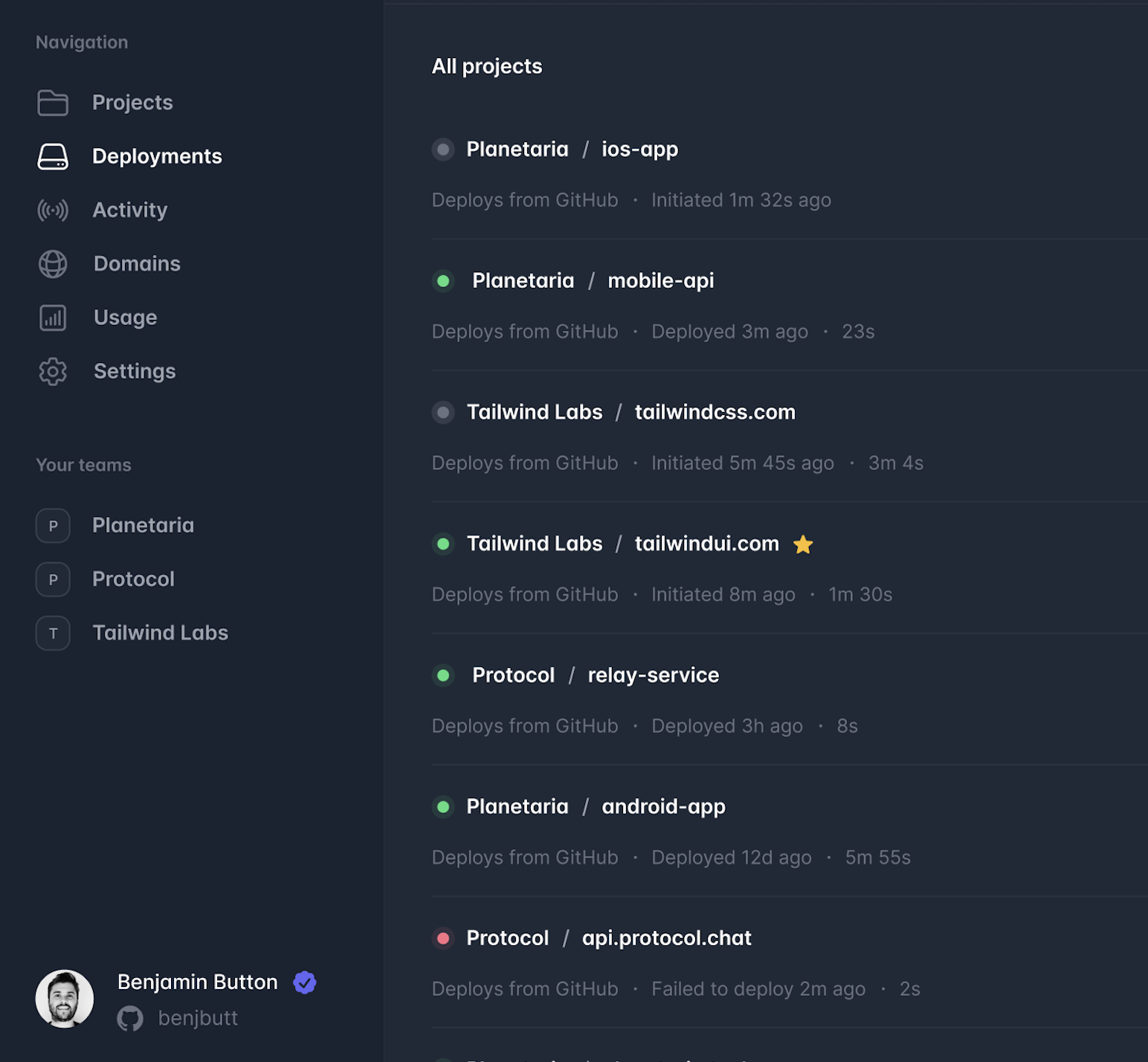
Use this area to explain the "why" behind your services. This narrative text allows you to build a connection with your audience before they dive into the specific details listed below.
  • Seamless Tool Integration: Connect your existing software with zero downtime or complex setup.
  • Enterprise-Grade Security: Protect sensitive data with industry-standard encryption and safety protocols.
  • Real-Time Performance: Monitor your business operations with instant data updates and live reporting.
saas-mockup
Screenshot 2025-07-20 at 11.54.01 AM

Interactive Drag & Drop

Easily rearrange these text blocks to match your page flow with a simple mouse movement.

Full Element Control

Customize every headline, paragraph, and spacing setting without writing a single line of code.

Responsive Visuals

Your images and text automatically scale to look sharp and professional on any mobile device.
Section Header

Section Header

Introduce your pricing tiers here. A clear, one-line description helps visitors quickly self-select the right plan before they scan the table below.

Free

Enable the monthly and yearly toggle to show dynamic pricing. It’s the perfect way to demonstrate value and encourage users to commit to longer-term billing cycles.

$0/mo

1 mo. minimum - cancel any time

  • Feature item 1
  • Feature item 2
  • Feature item 3
  • Feature item 4
  • Feature item 5

Professional

Use the "Most Popular" toggle to visually highlight a specific card. This draws the eye to your preferred tier and helps guide the user's decision-making process.

$29/mo

1 mo. minimum - cancel any time

  • Feature item 1
  • Feature item 2
  • Feature item 3
  • Feature item 4
  • Feature item 5

Enterprise

Every element is customizable. You can easily add or remove feature lists, edit pricing currency, and make buttons clickable to drive users directly to your checkout.

$99/mo

1 mo. minimum - cancel any time

  • Feature item 1
  • Feature item 2
  • Feature item 3
  • Feature item 4
  • Feature item 5

Free

Enable the monthly and yearly toggle to show dynamic pricing. It’s the perfect way to demonstrate value and encourage users to commit to longer-term billing cycles.

$0/year

Our most affordable plan ever!

  • Feature item 1
  • Feature item 2
  • Feature item 3
  • Feature item 4
  • Feature item 5

Professional

Use the "Most Popular" toggle to visually highlight a specific card. This draws the eye to your preferred tier and helps guide the user's decision-making process.

$299/year

Save over 15% annually

  • Feature item 1
  • Feature item 2
  • Feature item 3
  • Feature item 4
  • Feature item 5

Enterprise

Every element is customizable. You can easily add or remove feature lists, edit pricing currency, and make buttons clickable to drive users directly to your checkout.

$999/year

Save over 15% annually

  • Feature item 1
  • Feature item 2
  • Feature item 3
  • Feature item 4
  • Feature item 5
Section Header

Section Header

Use this second feature section to highlight supporting capabilities or integrations that reinforce your product value proposition.
Focused Clarity
Centered blocks highlight your core benefits. Keep messaging concise for a clean layout that guides visitors toward your primary action.
Visual Hierarchy
Break up text to prevent fatigue and improve retention. Use scannable headers to address pain points and provide the answers users need.
Scalable Growth
This flexible layout adapts to any business size. Build trust by organizing your services into a structure that proves your authority.
FAQ Module

Frequently Asked Questions

This FAQ module is more than just a support tool; it’s a strategic asset designed to help your brand surface as a Direct Answer in AI-driven search results.
What is AEO and why should I include an FAQ on my page?

Answer Engine Optimization (AEO) is the process of optimizing content for AI models like ChatGPT and Google Search Generative Experience.

By providing clear, concise questions and answers, you make it easier for these engines to find and pull your content as a featured snippet or direct response.

How does the Generator FAQ module help with "Topic Authority"?

AI crawlers look for "Helpful Content" that demonstrates deep expertise.

Using this module to address specific, niche-related questions signals to search engines that your page is a comprehensive resource, which can significantly boost your overall E-E-A-T (Experience, Expertise, Authoritativeness, and Trustworthiness) ranking.

Can I customize the look of the FAQ to match my brand?

Absolutely. You have full control over the "Surface" styles, including borders, corner rounding, and drop shadows. This allows you to maintain a clean, professional look that reduces cognitive load for your users while keeping them engaged with your most important technical or service-related information.

Call To Action

Full-Width Call To Action

Place this section at the end of a page to provide a clear next step. The button above is set to open the chat window by default — update the button behavior in the Content panel to link to a page, scroll to a section, or keep it as a live chat trigger.