


Skip to content

Accordion Module

The headline and subheader tells us what you're offering, and the form header closes the deal. Over here you can explain why your offer is so great it's worth filling out a form for.

The headline and subheader tells us what you're offering, and the form header closes the deal. Over here you can explain why your offer is so great it's worth filling out a form for.

Can I customize the design of the Accordion module?
With Generator you can adjust all styles — colors, borders, corners, spacing, typography, and more. You’re never locked into one design.
What should I use the Accordion module for?
It’s perfect for FAQs, feature breakdowns, or step-by-step content. The module keeps pages clean and lets visitors expand only what they need.
Is the Accordion module mobile-friendly?
Absolutely. All modules in Generator are responsive out of the box, touch-friendly, and optimized for performance across all devices.

How should I use this module?

The Carret section defines the visual indicator used to signal that an accordion item can be expanded or collapsed. You can customize the Carret Style here to ensure the icon aligns with your brand's aesthetic, typically choosing between various arrow or plus-sign configurations.
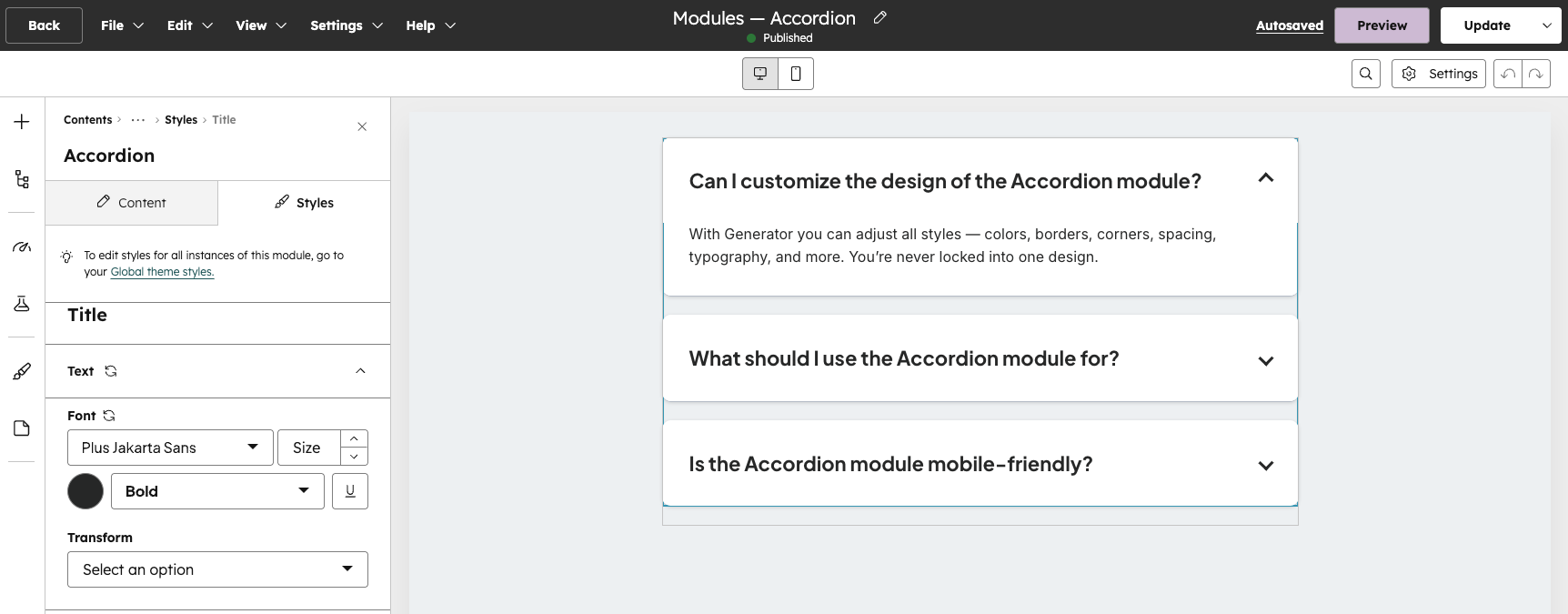
 

Content Tab

The Content Tab is where you manage the actual substance and information displayed within the module.

For the Accordion module, this section allows you to configure the functional elements of the dropdowns, including the toggle icons and the individual content rows.


Carret

The Carret section defines the visual indicator used to signal that an accordion item can be expanded or collapsed. You can customize the Carret Style here to ensure the icon aligns with your brand's aesthetic, typically choosing between various arrow or plus-sign configurations.

Screenshot 2026-04-07 at 1.22.29 PM

Accordions

The Accordions section is built as a repeater group, allowing you to add as many individual rows as needed. You can create new items, reorder them, or click the edit icon on a specific row to slide into its unique settings and manage its specific data.

Screenshot 2026-04-07 at 1.22.29 PM

Title

The Title field is where you define the clickable heading for each accordion item. This text remains visible at all times and acts as the trigger for users to open or close the associated content section.

Screenshot 2026-04-07 at 1.22.29 PM

Content

The Content area is where you establish the body text for each accordion item using a Rich Text field. This gives you full flexibility to include formatted text, links, lists, or even images that appear only when the accordion is expanded.

Screenshot 2026-04-07 at 1.22.29 PM

Styles Tab

The headline and subheader tells us what you're offering, and the form header closes the deal. Over here you can explain why your offer is so great it's worth filling out a form for.

Title

Text

Font — Controls the font family, size, weight, and color of the accordion title. Leave blank to inherit from your global theme typography

Transform — Sets letter casing on the title. Options: None, Capitalize, Uppercase, Lowercase.


Background

Color — Background color behind the title row. Defaults to transparent.


Spacing

Padding — Inner spacing on the title row. Margin is disabled here — use the Accordions spacing control to set gaps between items.

Content

Content

Background

Color — Background color behind the expanded content area. Defaults to transparent.

Spacing

Padding — Inner spacing around the expanded content. All sides default to 0px.

Accordions

Accordions

Border

Border — Controllable per side. Defaults to a 1px solid bottom border. Add all four sides for a boxed card style.

Corner

Radius — Rounds the corners of each accordion item. Only visible if a full border is applied.

Spacing

Space between — Top and bottom margin between each accordion item.

Shadow

For a standard subtle card shadow, try: Horizontal 0 / Vertical 4 / Blur 12 / Spread 0 / Color black at 10% opacity. Here's what each control does:

Horizontal offset — Shifts the shadow left or right. 0 keeps it centered.

Vertical offset — Shifts the shadow up or down. A small positive number like 4 makes it look like light is coming from above.

Blur — How soft the shadow edge is. 0 is a hard outline, 12–20 feels natural.

Spread — Grows or shrinks the shadow before blur is applied. Usually leave this at 0.

Color — The shadow color and opacity. Black at 10–20% opacity works for most designs. Higher opacity = heavier shadow.